1 Introduction
Sandberg USB 3.0 Multi Hard Disk Link (referred to as “the adapter”) is a perfect solution for creating an extremely fast connection of hard disks to a USB port. The adapter supports both 2.5” and 3.5” IDE and SATA type hard disks. You can even connect an IDE and a SATA hard disk at the same time which gives you two extra hard disks on your computer. Alternatively you can also connect 5.25” CD and DVD drives. You will avoid cable clutter as all the connectors are placed directly on the adapter. User-friendly backup software for Windows is included.
2 Overview
2.1 The top of the adapter

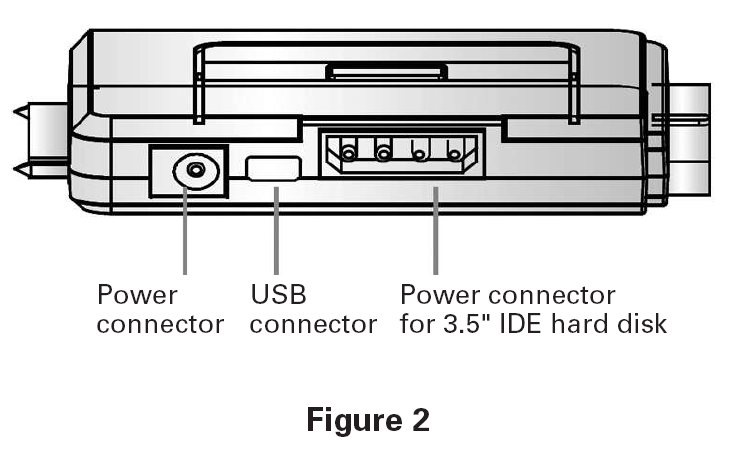
2.2 Connections on the sides of the adapter

3 Connection
3.1 Hard disk connector
3.1.1 SATA hard disk
Connect a SATA drive to the SATA connectors as shown in fig. 3.
3.1.2 IDE 2.5” hard disk
Connect a 2.5” IDE hard disk to the narrow IDE connector as shown in fig. 3.
3.1.3 IDE 3.5” hard disk
- Set the hard disk jumpers to "Master" by following the diagram stuck onto the hard disk itself, or in other documentation from the hard disk manufacturer.
- Connect a 3.5” IDE hard disk to the wide IDE connector as shown in fig. 3.
- Connect the supplied 4-pin power cable between the power connector on the front of the adapter and the power connector in the hard disk.
3.1.4 IDE CD/DVD drive
- Connect an IDE CD/DVD drive to the wide IDE connector as shown in fig. 3.
- Connect the supplied 4-pin power cable between the power connector on the front of the adapter and the power connector in the hard disk.
NOTE: An IDE hard disk and a SATA hard disk can be connected at the same time. Two IDE hard disks cannot be connected at the same time.
3.2 PC Connection
- Connect the power supply to a wall socket and the small power connector on the front of the adapter. Switch on the power.
- Connect the USB cable to the small USB connector on the front of the adapter and a USB connector in your PC.
A new drive is created on your computer. You can use this drive in the same way as any other drive on your computer.
4. Troubleshooting
4.1 Partitioning
The connected hard disk(s) must be partitioned so that the computer can read and write on them. If this is a new unused hard disk, it has typically not been partitioned. This can be done so as follows:
- Open Disk Management under Administrative Tools -> Computer Administration in the Windows Control Panel.
- Highlight the hard disk’s unallocated area as shown in figure 4:
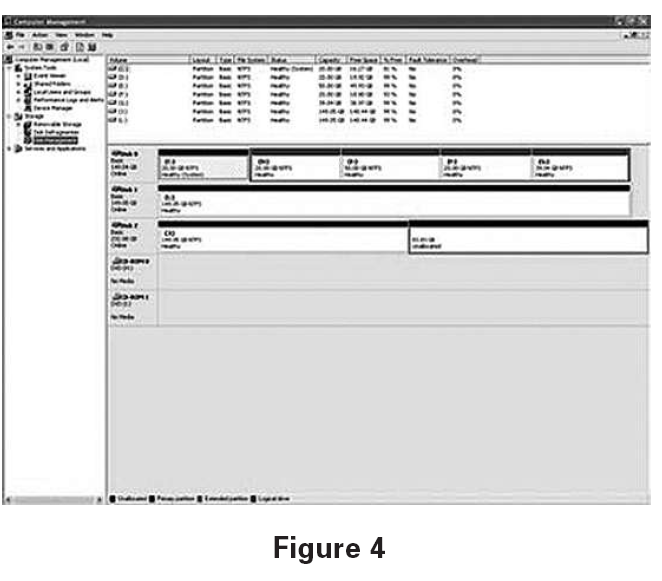
- Right-click and select “New partition/volume”. Follow the instructions on the screen to allocate the desired size and drive letter etc. to the partition. We recommend selecting primary partition, maximum possible capacity and formatting in NTFS file format.
- Formatting begins, after which the partition is completed and can be accessed like any other drive.
4.2 The hard disk has been partitioned, but no new drive can be found
- Check that the power supply is connected correctly and that the power socket is switched on.
- Check that the hard disk has been correctly connected to the corresponding connector on the adapter.
- Try connecting to a different USB port.
- Please note that only one IDE hard disk can be connected at a time.
If you need further help or assistance with your Sandberg product, you can visit the website http://helpdesk.sandberg.it.
Have fun with your Sandberg USB 3.0 Multi Harddisk Link! |